DIY Map Sharing Between Two Devices:
Send Destinations from Your Phone to Your Tablet
The Problem: Juggling Delivery Apps and Navigation on One Phone
Working as a delivery driver is already busy enough. You are accepting orders, checking pickup details, reading customer notes, messaging customers, tracking delivery status, and following directions, often all from one phone.
Or maybe your car does not have Android Auto or Apple CarPlay. So now your phone has to do everything at once.
The Solution: Turn an Old Android Device into a DIY Map Screen
So the question is: Can you turn that old device into a simple DIY navigation screen without installing complicated software?
The answer is yes.
With my web app, you can use your main phone for your delivery app and use your old Android tablet or spare phone as a separate map screen just by using chrome and google maps.
Your main phone stays focused on DoorDash, Uber Eats, Instacart, Spark, or whatever delivery app you use. Your second device stays focused on navigation, maps and/or media player.
The basic setup looks like this:
iPhone: Delivery app + sending the map coordinates,
tablet or spare phone: Google Chrome and Maps navigation screen, and
maps.khakancreative.com: The bridge between both devices.
It is a simple way to reuse an old device and make your delivery setup feel cleaner, safer, and easier to manage.
Here are the Requirements:
- iPhone as your main device or sender(can be done using android but I have never tried)
- an unused Tablet or Phone as the receiver or map viewer.
- receiver must have internet either via hotspot tethering or its own data.
- Google Chrome and Google Maps on both devices
- Deliver App’s default Navigation must be set to Google Maps and not Maps, or Waze, or the default navigation.
iPhone/Main Phone setup: 2 ways to connect, Good old Google Chrome
- Open both google chrome and maps app in your iPhone.
- Inside Chrome open this link:
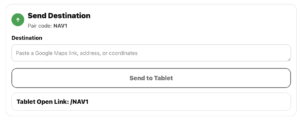
– https://maps.khakancreative.com/send/NAV1
(please note that you will replace NAV1 with your pairing code) - You will see something like this.

- Next inside google maps, pick a point or location and then share and copy the link.
- Once link has been copied, lets go back to the chome page and paste the link in that “Destination” space.
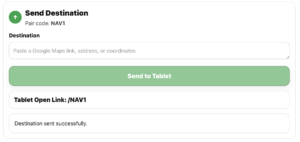
- And then click “Send to Tablet“.
- The button will deactivate and turn green, and a confirmation that the direction was sent

Tablet/Phone Receiver setup: 2 ways to connect, The Advanced iPhone Shortcut.
- Inside your iPhone open the Shortcut App.
- Create a new shortcut. Search actions and select “Get Urls from input“.
- Select variables, and select “Shortcut Input” and click the check mark to confirm.
- Next Search actions and select “URLS“. In the space for the URL, paste this link
– https://maps.khakancreative.com/shortcut?code=NAV1&u=
(take note, change the “NAV1” to your custom pairng code). - at the end of the link click the “+” button, and select the “Url” variable. This will link the URL you just grabbed from the clipboard and add it to the link. And save the Short cut.
Now remember the name of this shortcut. - Open the maps app, and try and share another location.
- But in the share menu scroll down and click “Edit Actions“. Add the shortcut we just created.
- and you are done.
Tablet/Phone Receiver setup
- First open the chrome browser, and go to this link
– https://maps.khakancreative.com/open/NAV1
(make sure the NAV1 is your Pairing code). - You will see this page is this is the first time opening it.
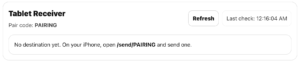
- If you have a new destination shared, the button will be “Green”
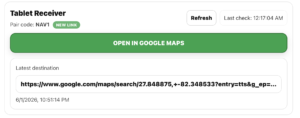
- If the destination has been opened, the button will be “Blue”
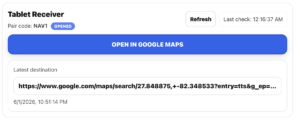
- You just have to click the button “Open in Google Maps“, and this will open the link you shared in google maps.
- This will open your destination in Google Maps.
- And Start the navigation.